


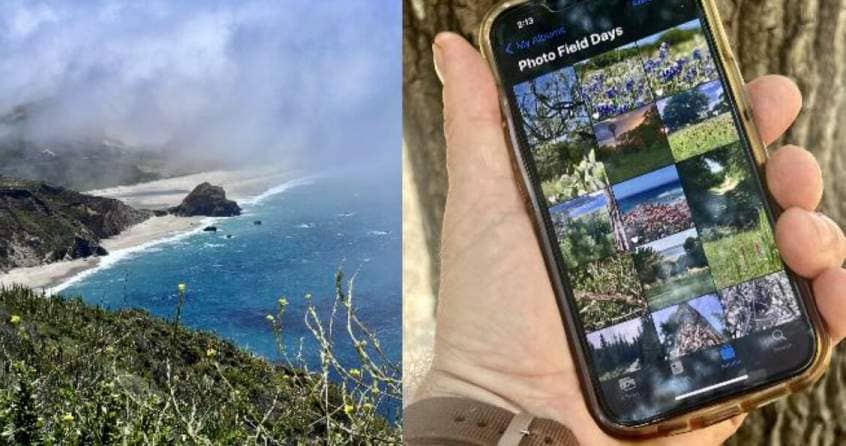
Do you have to scroll through gobs of photos to find that perfect one to share? For most people, it’s a resounding yes. This is even more true for smartphone photographers and digiscopers. If you use an iPhone, it’s easy to put your iPhone’s albums to work for organizing and sharing your hard-earned images and videos.
First off, let’s clear up a common misconception; the one that says every time you add an image to a special album, you’re doubling the amount of storage you’re using. Rest assured, placing images in two or more albums does not use more iPhone storage. This is great news for those wishing to maintain a seamless and organized digiscoping regimen.
For example, when you take a picture with your device, it automatically adds it to your Recents album. If you subsequently add the same image to a newly created album named Bird Watching, you’re still only taking up storage space for one photo.
Now that we’ve cleared that up, what about the why?
Organization
Remember Grandma’s photo albums? Boy, I do. What they provided in nostalgia was offset by, well, dealing with big clumsy books of photos. Today, your smartphone images are automatically stored in your phone – and in multiple places, if you wish. This means you can organize them in any way you want, or, to be more accurate, any way(s) you want. Because of iPhone’s duplicative image-storing ability, you can sort the same image in different ways, such as Migratory Birds, Summer Deer Scouting, and Mountainous Landscapes.
Customization
As a smartphone photography and digiscoping enthusiast, I love the endless ways you can use iPhone Albums to create categories.
Because of iPhone’s duplicative image-storing ability, you can sort the same image different ways, such as Migratory Birds, Summer Deer Scouting, and Mountainous Landscapes. Similarly, you might also like albums based on the locations at which the images were captured (Family Property, Alaska, etc.). You can create as many as you want because, as mentioned, more albums don’t mean more storage used.

There are countless ways to organize and categorize your smartphone and digiscoped images.
Quick Access
This one is important. There are times when you need the right image and you need it fast. As a writer, I, for example, need quick access to the images relevant to a given article.
This is no problem, as long as you create and actively use your iPhone album structure. From grabbing an image for the next social media post to creating a photography portfolio, seamless access to the right image at the right time is huge. Oh, and of course, nobody likes having to laboriously dig through images in order to simply share them with friends and family. You know, everyone’s staring at you while you labor to find the right shot. Oh, the pressure!
Maximizing Storage
When organizing photos on your iPhone, you’ve got a great opportunity. This is a perfect time to cull all unneeded pictures in your albums. This will free up overall storage space and further help you find needed photos much faster. You can easily find and remove unnecessary duplicate photos by simply deleting them from the Recents album.
How to Create and Use iPhone Albums
This is an easy process. Here are the simple steps for creating a new album.
- From your iPhone home screen, choose the Photo app.
- Choose the photo (or photos) you want to file in another special album.
- Choose the “box with the down arrow in it.

4. Choose Add to Album

5. Either create a new album or choose an existing one in which to file it.

It’s easy! Take a little time to organize your images and videos in a way that enhances your smartphone photography and digiscoping efforts. You’ll be glad you did.